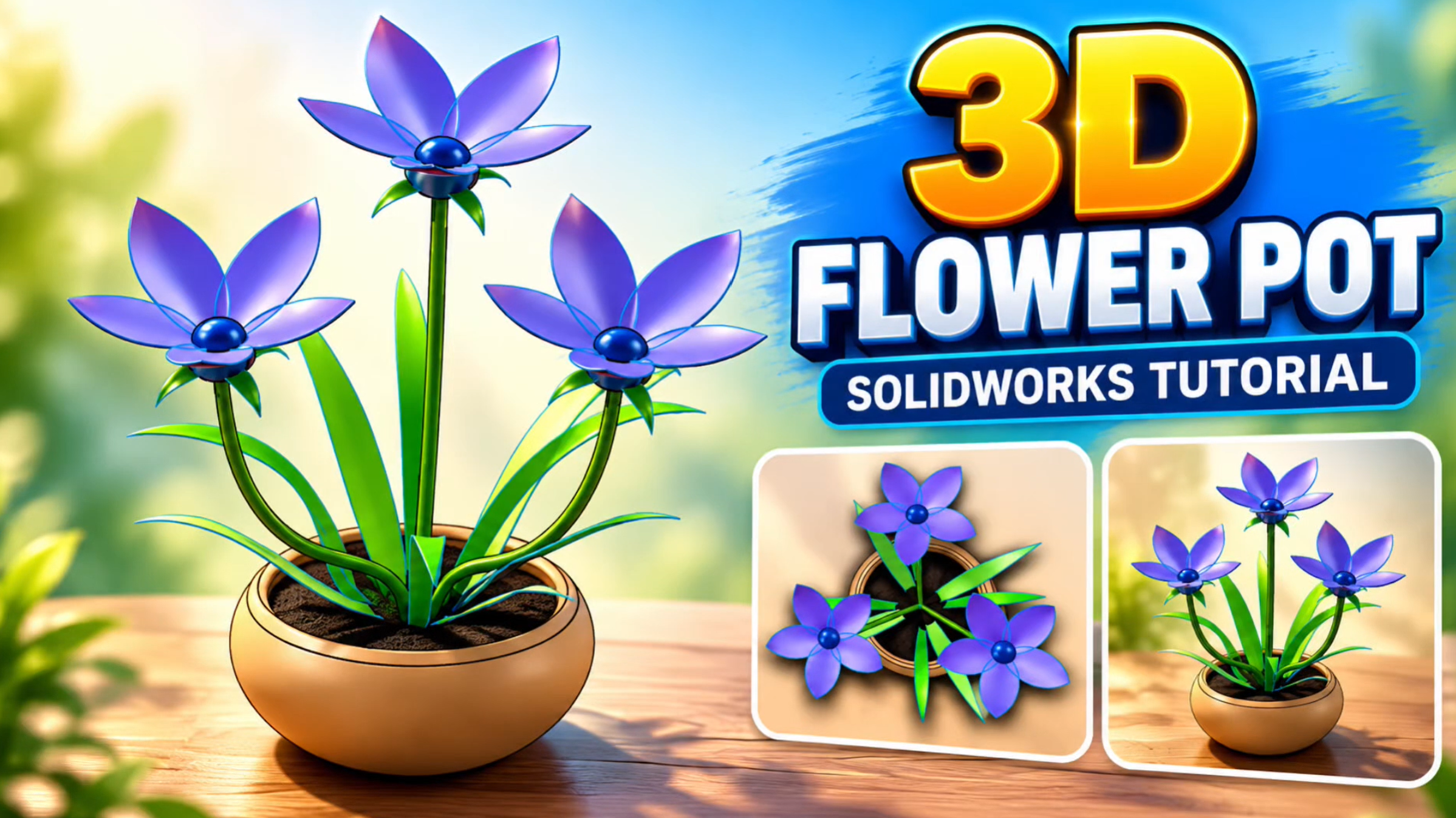
Learn how to create a beautiful 3D flower and plant pot in SOLIDWORKS using surface modelling, part design, and assembly tools! 🌸
In this step-by-step SOLIDWORKS tutorial, I’ll guide you through the complete design process, from creating individual flower components to assembling a decorative 3D flower and plant pot.
You’ll learn how to model curved stems, design realistic flower petals and leaves, create a custom plant pot, and combine all the components into one complete 3D assembly.
This project is perfect for SOLIDWORKS beginners, CAD enthusiasts, engineering students, and makers interested in creating unique decorative designs for 3D printing.
What You’ll Learn
In this tutorial, you’ll discover:
- How to create curved flower stems using Sweep Boss/Base.
- How to design realistic flower petals and leaves using surface modelling.
- How to use Revolved Surface to create curved geometry.
- How to apply Mirror and Trim Surface tools.
- How to duplicate flower components using Circular Pattern.
- How to customize component colors, materials, and appearances.
- How to design a plant pot using Revolved Boss/Base.
- How to combine individual parts into a SOLIDWORKS Assembly.
- How to position and connect components using Coincident Mate.
Designing the Flower in SOLIDWORKS
The project begins with creating the individual parts of the flower.
Creating the Curved Stem
Learn how to use the Sweep Boss/Base feature to generate a smooth, curved flower stem from a sketch profile and path.
This technique is useful for designing organic shapes, curved structures, and decorative models.
Modelling Flower Petals and Leaves
Next, we’ll explore SOLIDWORKS surface modelling tools to create flower petals and leaves.
Using features such as Revolved Surface, Mirror, and Trim Surface, you can produce curved geometries and refine the overall appearance of your flower.
Creating Multiple Petals
The Circular Pattern tool allows you to duplicate petals around a central axis, helping you create a complete flower arrangement with consistent spacing.
Designing the Plant Pot
After creating the flower components, we’ll design a custom plant pot.
Using the Revolved Boss/Base feature, you’ll learn how to generate a rotationally symmetric plant pot from a 2D sketch.
You can also experiment with different dimensions, shapes, and appearances to personalize the design.
Assembling the Flower and Plant Pot
Once all components are complete, we’ll bring them together using SOLIDWORKS Assembly.
You’ll learn how to:
- Insert individual parts into an assembly.
- Position flower stems, petals, and leaves.
- Use Coincident Mate to align and connect components.
- Arrange the flowers inside the plant pot.
- Adjust colors and appearances to create a decorative final model.
By the end of the tutorial, you’ll have a complete 3D flower and plant pot assembly.
Why Try This SOLIDWORKS Project?
This tutorial is a great opportunity to practice several essential SOLIDWORKS modelling techniques in a single creative project.
Instead of modelling simple mechanical parts, you’ll explore curved geometry, decorative shapes, surface modelling, and multi-component assemblies.
These techniques can also be applied to product design, artistic CAD models, and custom 3D printing projects.
Watch the Full Step-by-Step Tutorial
I’ve created a complete YouTube tutorial demonstrating the entire modelling workflow, from designing the individual flower components to completing the final assembly.
Follow along to improve your SOLIDWORKS skills and create your own decorative 3D flower design!
Watch the full tutorial on my YouTube channel: Bambu3Design!
Create Your Own 3D Flower Design!
Experiment with different flower shapes, leaf designs, stem arrangements, plant pot styles, and colors to create your own unique model.
Once your design is complete, you can explore preparing the individual components for 3D printing.
Explore more SOLIDWORKS tutorials, CAD modelling projects, 3D printing designs, and creative DIY builds at Bambu3Design!
If you enjoyed this tutorial, don’t forget to subscribe to my YouTube channel, like the video, and share your creations.
Happy Making! 🌸