Introduction
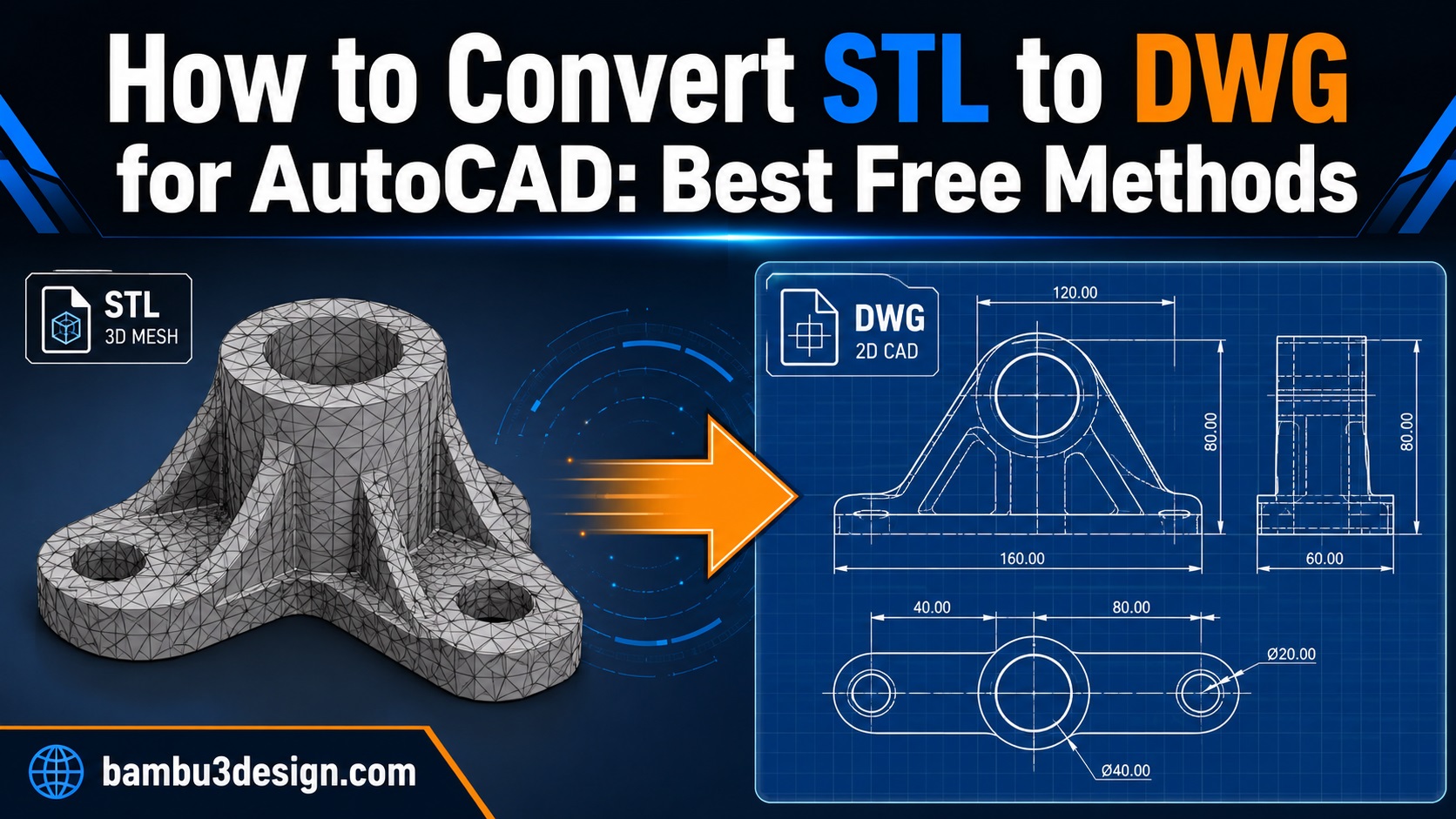
STL files are everywhere in 3D printing. If you download a model from a 3D printing website or export a design from a slicer-friendly program, there is a good chance it will be saved as an .stl file. But when you want to open or edit that same model in AutoCAD, things can become confusing.
The main issue is that STL and DWG are very different file types. STL stores a 3D model as a mesh made from many small triangular faces, while DWG is AutoCAD’s native drawing format and is mainly used for CAD geometry, technical drawings, and design data. Autodesk’s own support information states that STL files cannot be imported directly into AutoCAD-based products, and Autodesk recommends using other applications such as Fusion or Inventor for STL workflows.
So, can you convert STL to DWG? Yes, but with an important limitation: the result may not become a clean, fully editable CAD model. In most cases, the practical workflow is to convert STL to DXF first, open the DXF in AutoCAD, and then save it as a DWG file.
STL vs DWG: Why Direct Conversion Is Difficult
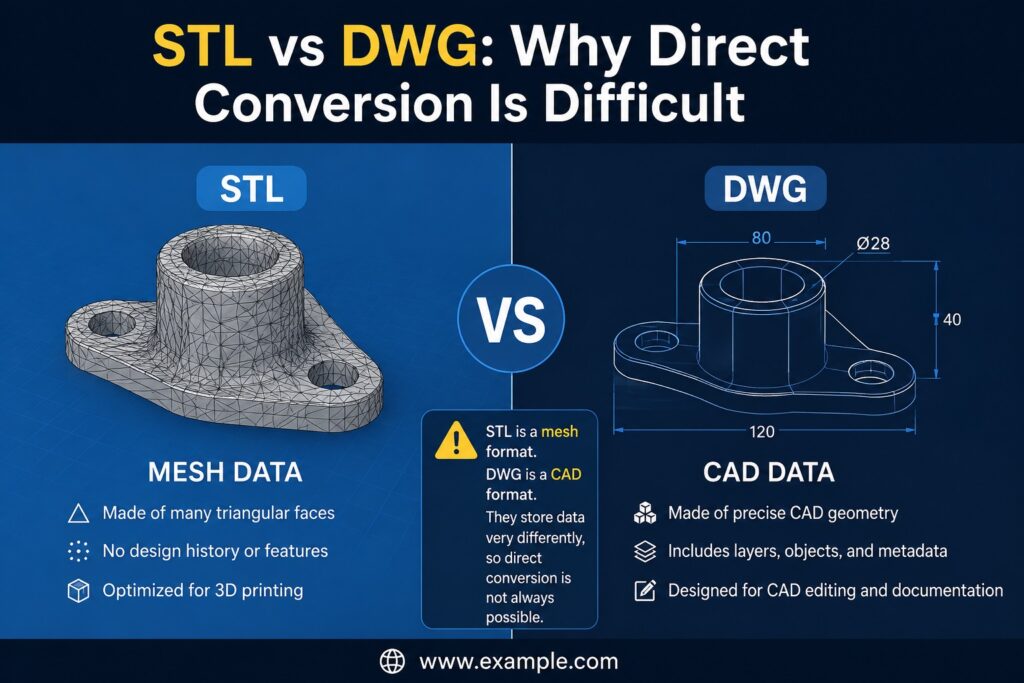
Before converting, it helps to understand what each format is designed for.
An STL file is mainly used for 3D printing. It describes the surface of a model using triangles. This is excellent for slicers because the printer only needs the outer geometry of the object. However, STL does not usually contain parametric CAD features such as sketches, extrusions, fillets, constraints, layers, or editable design history.
DWG, on the other hand, is AutoCAD’s native file format and can store 2D and 3D CAD data. It is widely used for engineering drawings, architecture, manufacturing, and technical documentation. All3DP notes that DWG can store both 2D and 3D data and is strongly associated with AutoCAD workflows.
This is why converting STL to DWG is not always a simple “save as” operation. You are often converting a mesh into a CAD-compatible representation, not recreating the original parametric model.
Best Workflow: Convert STL to DXF, Then Save as DWG
For most users, the easiest route is:
- Convert the STL file to DXF.
- Open the DXF file in AutoCAD.
- Save the file as DWG.
DXF is often used as an exchange format between CAD programs. It is not always perfect for complex 3D mesh models, but it is usually more AutoCAD-friendly than STL. All3DP also recommends DXF as a practical workaround when STL-to-DWG conversion is not straightforward.
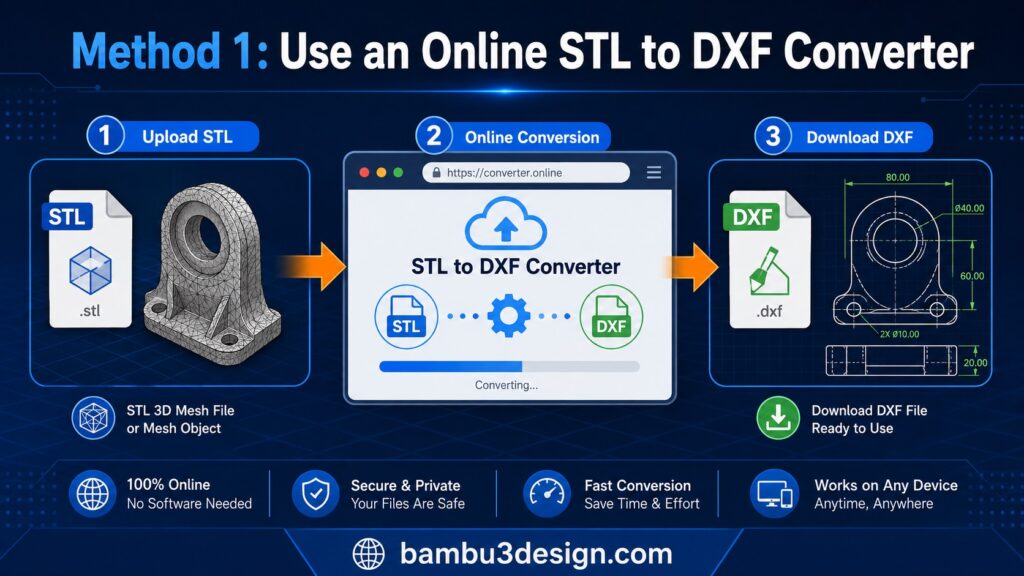
Method 1: Use an Online STL to DXF Converter
Online converters are the fastest option when the model is simple and you do not want to install extra software. These tools usually allow you to upload an STL file and download a converted DXF file.
Best for:
- Simple STL models
- Quick conversions
- Users who do not need advanced editing
- Small files
Basic steps:
- Open an online STL-to-DXF converter.
- Upload your STL file.
- Choose DXF as the output format.
- Download the converted file.
- Open the DXF in AutoCAD.
- Save it as a DWG file.
Important tips:
Use online converters only for non-confidential files. If your STL contains a commercial product, client design, prototype, or private engineering model, avoid uploading it to a third-party website. For sensitive files, use offline software instead.
Also, online tools may struggle with very large or highly detailed STL files. If the mesh contains thousands or millions of triangles, the converted DXF can become heavy, slow, or difficult to edit.
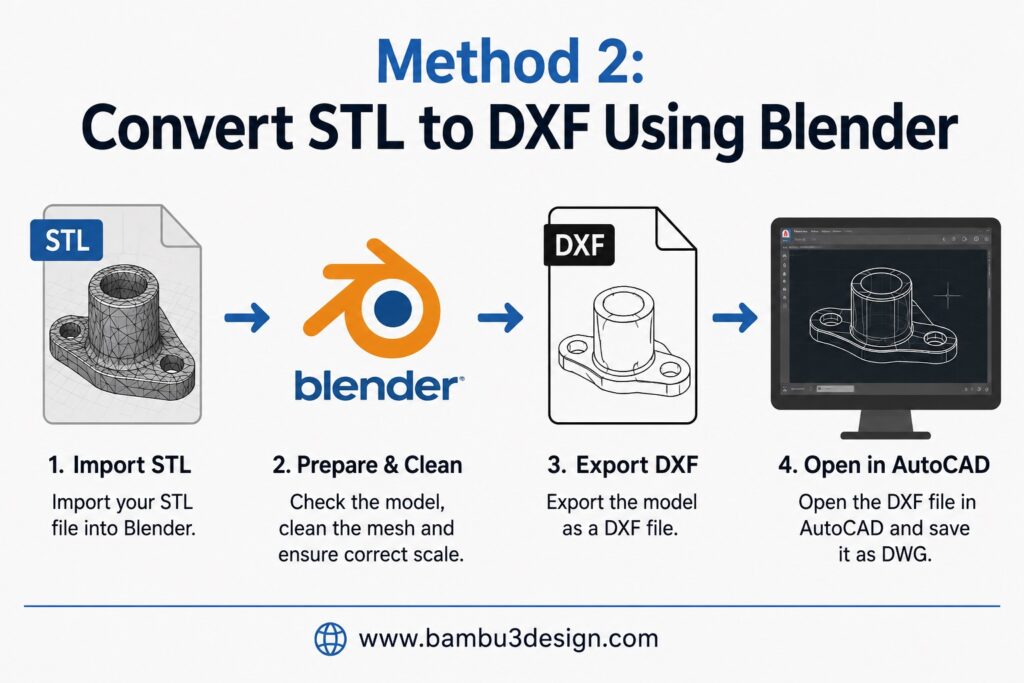
Method 2: Convert STL to DXF Using Blender
Blender is a free, open-source 3D modeling program. It can import STL files and, with the correct add-on enabled, export DXF files. Blender’s own documentation describes STL as a format commonly used for CAD and 3D printing workflows, and Blender also has an AutoCAD DXF add-on available through its extensions system.
Best for:
- Larger STL files
- Users who want more control
- Mesh cleanup before conversion
- Free offline conversion
Step-by-step guide:
- Open Blender.
- Delete the default cube if it appears in the scene.
- Go to File > Import > STL.
- Select your STL file and import it.
- Check the model scale and orientation.
- Clean the mesh if needed.
- Enable the DXF export add-on if it is not already available.
- Go to File > Export > AutoCAD DXF.
- Export the file.
- Open the DXF in AutoCAD.
- Save the drawing as a DWG file.
How to enable DXF export in Blender:
- Go to Edit > Preferences.
- Open the Add-ons or Extensions section.
- Search for DXF.
- Enable the AutoCAD DXF import/export option.
- Return to File > Export and check whether DXF is now available.
Blender is especially useful because you can simplify, repair, or scale the STL before exporting. This can make the final AutoCAD file easier to handle.
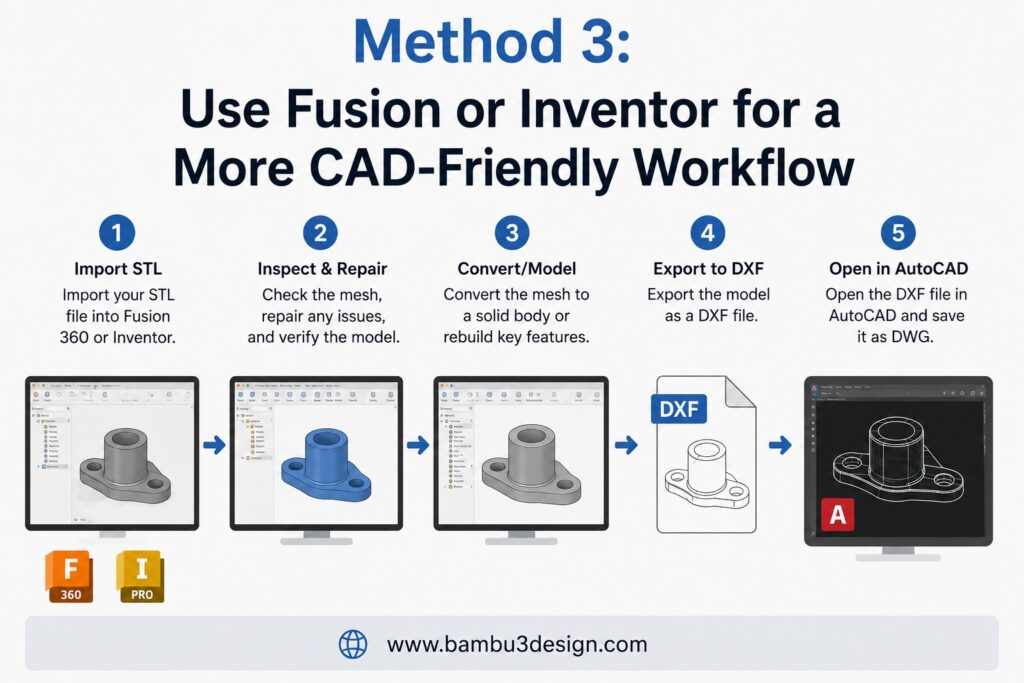
Method 3: Use Fusion or Inventor for a More CAD-Friendly Workflow
If you are working professionally, Autodesk Fusion or Inventor may provide a better route than direct STL-to-DWG conversion. Autodesk support notes that STL files cannot be imported directly into AutoCAD-based products and suggests using applications like Fusion or Inventor instead.
This workflow is useful when you want to inspect, repair, or convert a mesh before bringing it into a CAD environment. However, even here, the STL will still begin as mesh geometry. It will not automatically become a perfect parametric model unless you rebuild or reverse-engineer the geometry.
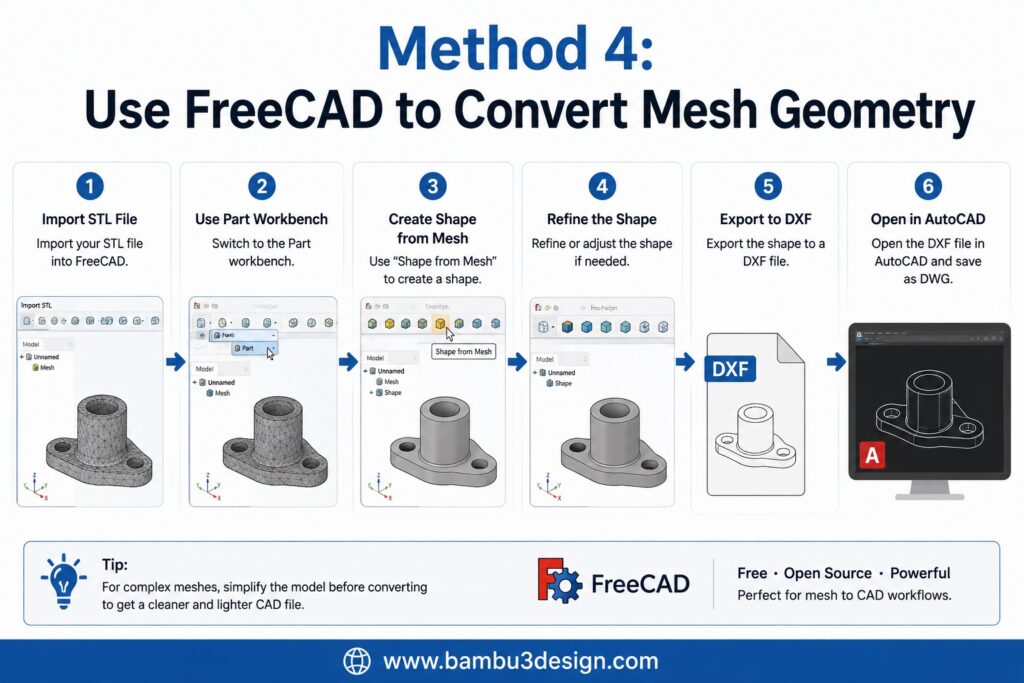
Method 4: Use FreeCAD to Convert Mesh Geometry
FreeCAD can also be useful when you need a free CAD-based workflow. FreeCAD documentation includes a Shape From Mesh command, which creates a shape from a mesh object.
A typical FreeCAD workflow is:
- Import the STL file.
- Use the Part workbench.
- Create a shape from the mesh.
- Convert or refine the shape if needed.
- Export to a CAD-friendly format.
- Open the result in AutoCAD or another CAD program.
This method can be useful, but complex STL models may still create heavy files. Mesh-to-solid conversion is not always clean, especially if the STL has holes, non-manifold edges, overlapping faces, or extremely dense triangles.
Common Problems When Converting STL to DWG
1. The file becomes too large
STL models can contain thousands of triangles. When converted to CAD formats, every triangle may become a separate face or entity. This can create a very large DXF or DWG file.
Fix: Reduce the mesh density before conversion.
2. The model is not editable like a normal CAD file
A converted STL usually does not behave like a native AutoCAD model. You may be able to move, scale, or inspect it, but editing individual design features can be difficult.
Fix: Use the converted file as a reference and remodel important features manually.
3. Curved surfaces look faceted
STL files approximate curves using triangles. After conversion, those triangular facets may still be visible.
Fix: Use a higher-quality original CAD file if available, such as STEP, IGES, or the original DWG.
4. AutoCAD becomes slow
Large mesh-based CAD files can slow down AutoCAD.
Fix: Simplify the mesh, remove unnecessary details, or split the model into smaller sections.
Best Practices Before Conversion
Before converting STL to DWG, prepare the model properly:
- Repair the STL mesh if it has holes or broken faces.
- Reduce triangle count if the model is too dense.
- Check the scale and units.
- Remove unnecessary decorative details.
- Use offline tools for confidential designs.
- Keep a backup of the original STL file.
Is DWG the Best Format for 3D Printing?
Not usually. STL, 3MF, and OBJ are more common for 3D printing workflows. DWG is better for CAD drawings, engineering documentation, and AutoCAD-based design work.
If your goal is to 3D print a model, you usually do not need DWG. If your goal is to edit, measure, document, or integrate a model into an AutoCAD project, then converting STL to DXF or DWG can be useful.
Final Recommendation
The best method depends on your goal.
For a quick and simple conversion, use an online STL-to-DXF converter and then save the file as DWG in AutoCAD. For more control, use Blender because it allows you to import, inspect, clean, and export the model for free. For professional CAD workflows, consider Fusion, Inventor, or FreeCAD, especially if you need to repair or rebuild the geometry.
The most important thing to remember is that STL-to-DWG conversion does not magically recreate the original CAD design. It mainly transfers mesh geometry into an AutoCAD-compatible workflow. For clean editing, the original CAD file is always better than an STL.
FAQ
Can AutoCAD open STL files directly?
According to Autodesk support, STL files cannot be imported directly into AutoCAD-based products. Autodesk recommends using other applications such as Fusion or Inventor for this type of workflow.
Can I convert STL directly to DWG?
Sometimes, but the more reliable workflow is to convert STL to DXF first, open the DXF in AutoCAD, and then save it as DWG.
Will the converted DWG be fully editable?
Usually not. The converted file will often remain mesh-like geometry rather than a clean parametric CAD model.
What is the best free tool for STL to DWG conversion?
Blender is one of the best free options for STL-to-DXF conversion. FreeCAD is also useful if you want a more CAD-focused workflow.
Should I use STL, DXF, or DWG for 3D printing?
For 3D printing, STL or 3MF is usually better. DWG is mainly useful for AutoCAD and technical drawing workflows.